Manage WhatsApp on Two Phones for Best Team Collaboration
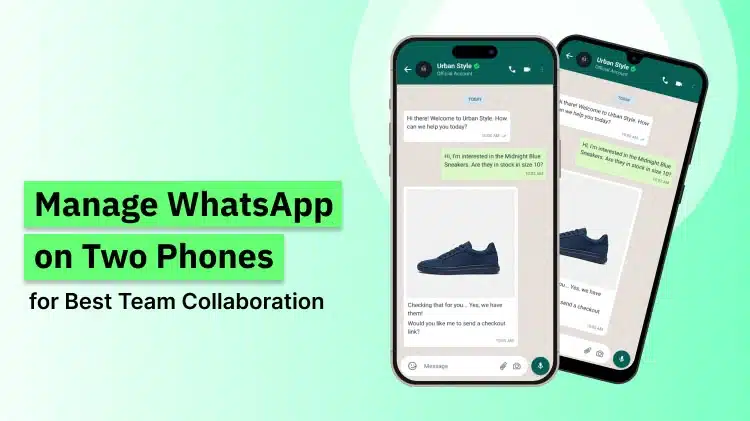
WhatsApp messages are part of daily routine for us now. One can use more than one device to access WhatsApp messaging. But it is also a common scenario now that sometimes messages get stuck in the first device only. WhatsApp has come up with a solution called ‘Companion Mode’ on this issue. Now you can switch between two devices for accessing your WhatsApp messages without any work to do in browser or any need of a third-party app. This is a very nice facility available today, for those who keep personal as well as official phones. In this blog article, we have elaborated about the solution and much focus on how to use WhatsApp on two phones, in detail.
What is Companion Mode of WhatsApp?
This feature was introduced in April 2023 by WhatsApp. Up to four phone devices to single WhatsApp account number. These linked phones can receive messages and calls irrespective of the main phones net connectivity.
The process of linking multiple devices is simple and secure. Earlier this, WhatsApp’s multiple device setup was restricted to web and desktop. Now, with added phones, it’s easy to stay connected across several devices, whether you are on iOS or Android.
Every phone you connect works on its own. All your chats remain encrypted as usual.
Ready to use WhatsApp on Two Phones?
Set up smart access for your team
Why WhatsApp Companion Mode is so Useful?
It is important for your communicational way, when you swing between your connected devices across a single WhatsApp account. To use companion mode can be good for daily use. It’s not just about comfort but also for removing issues.
Users love to get below benefits of using Companion Mode:
- Stay Connected: Messages don’t stop getting, although your primary phone dies.
- Better Coverage: Teams using a shared WhatsApp line can now expand the load.
- Less Disruption: You can stop one device, select another, and continue without resyncing.
- No Juggling: Open your chats on nearby phone.
For users who work on the go or share time between phones, it streamlines the complete experience.
Privacy and Security
WhatsApp maintains privacy also in multiple device connectivity for the user. Each message retains end-to-end encryption with lock, and every device establishes its own secure connection. So, WhatsApp do not compromise on the security apart from flexible features.
How to Use WhatsApp on Two Phones with Single Number
With Companion Mode, linking another phone to your current WhatsApp account is much simpler. You need not to have your SIM card in both phones, without any critical synchronisation.
While some users search the query for how to use WhatsApp on two phones without QR code, the existing method still needs a fast scan during setup—but upon this, both phones function solo.
As phone devices gets linked up, media, call, messages everything syncs on each device. As both phones stay in sync, and you can send or receive chats from any one from them any time.
This is very useful for people who switch between a personal and work phone. In travel or just like to keep a backup device for communication.
Using WhatsApp on a Linked Android Companion Phone
If your second phone is on Android, linking happens in some moments. As you have set up, the app will work similarly as on the main device.
Steps to follow in this process:
- Go to the Google Play Store on your Android phone.
- Search for “WhatsApp Messenger” and install the app.
- Start it, and instead of entering your phone number, click on “Link to existing account.”
On your main phone, go to WhatsApp, go to Settings > Linked Devices > Link a Device, and scan the QR code.
Don’t ignore below settings:
- Go to app settings of your phone and make sure that WhatsApp notifications are ON.
- Disable battery optimization for WhatsApp so that messages can be received instantly.
- If prompted, enable the app access to media and files.
Some features will not be carried over to your second device. You would not be able to share your location live, update your status, or manage broadcast lists from the companion phone. For rest of the things, it’s business as it is going.
Using WhatsApp on a Linked iPhone Companion Phone
The iPhone version works same as of in Android, even though you’ll need to change a few settings to make things run smoothly.
Follow below steps:
- Open the App Store on the second iPhone and install WhatsApp.
- Begin the app and tap on “Link to existing account.”
- On your main phone, head to Settings > Linked Devices > Link a Device and scan the QR code that appears.
Adjust some settings:
Go to Settings > Notifications > WhatsApp and allow all notification types – alerts, sounds, banners and badges.
- Do Background App Refresh, so the app will be updated always, even if you are not using it.
- Keep in mind, your linked iPhone would not back up the chat history unless you switch it as your primary device.
You’ll notice the same limitations as Android here. Live location, broadcast tools, and some account settings will be locked on the companion phone.
Activate WhatsApp companion mode today
Reply from anywhere via your team
How to Set Up WhatsApp on Two Phones (Step by Step)
Companion Mode works in the same way on Android and iPhone, even though the screens look a little different. If you are thinking about how to use WhatsApp on two mobiles, here’s an easy walk-through for two platforms to support you link to your second phone without any guess.
For Android
- Step 1: Install WhatsApp on your second(device) Android phone from the Google Play Store.
- Step 2: Begin the app and click on the 3-dot menu in the top-right corner.
- Step 3: Select “Link to existing account.”
- Step 4: Open WhatsApp on your main (primary device) phone and go to Settings > Linked Devices > Link a Device.
- Step 5: Use your fingerprint, PIN, or face unlock to verify it’s you.
- Step 6: Scan the QR code on the second phone using your primary device.
- Step 7: Sync it – this takes a few seconds normally.
- Step 8: Upon synced, the second device will show your latest chats and messages. From there, you can go to the chat and start replying right away.
For iOS
- Step 1: Open the App Store on your secondary iPhone & install WhatsApp.
- Step 2: Start over the app and tap on the “Link to existing account.”
- Step 3: On your primary phone, go to Settings > Linked Devices > Link a Device.
- Step 4: Authenticate yourself with your Face ID, Touch ID, or passcode.
- Step 5: Point main phone at the QR code on the iPhone screen to scan the code.
- Step 6: Wait to sync – this only takes a few moments.
And after this, your chats will be available on both devices.
Limitations of Using WhatsApp on Two Phones
As supportive as Companion Mode is, it does come with a few limitations. Understanding what you can and can’t do. You can link 4 extra devices, in addition to your main one. If your primary phone is inactive for 14 days, all linked devices will be logged out. Only latest messages get synced when linking a new device. Older messages do not carry over.
Some features are not available on the linked phones, like sharing your live location, updating status, or managing broadcast lists. Each device has got own notification settings. And you will have to turn them manually. Chat backups do happen on the primary device. The others don’t upload to iCloud or Google Drive.
How WebMaxy is Useful to Use Same WhatsApp Account Across Two Phones?
If you’re running a business, you are aware for this typical problem. One WhatsApp number. Multiple team members. Only one phone. It becomes kiosk easily. Many messages get missed. Team members wait for device access. Responses are delayed. Customers start losing patience. WebMaxy has an important role to play here.
1. No More Sharing of a Phone
In many small and growing businesses, one WhatsApp number is for everything such as sales, support, follow-ups, and inquiries. But passing around a single phone is not a permanent solution. It’s a temporary fix.
With WebMaxy, your WhatsApp account gets connected to a shared dashboard. Now your team may access the very same number from other devices without logging in and out or without physically sharing a phone. Everyone can see the conversations in one place. Everyone stays updated without any confusion.
2. It Works Through the Official WhatsApp Business API
WebMaxy connects your number via the official WhatsApp Business API.
This is very important. In place of trying risky tricks to use one WhatsApp account on two phones, you can use a proper business setup.
This allows:
- Multiple agents can reply at the time
- Clear chat ownership
- Full chat history
- Secure access
You’re not “duplicating” your account. You’re managing it professionally.
3. No Random Logouts or Security Risks
If you’ve tried using one WhatsApp account across devices unofficially, you must be aware about the end results.
- Sudden logouts
- Session errors
- Sometimes account restrictions
That’s burden, when customers are waiting. With the use of WebMaxy, everything runs via approved channels. Your account stays stable. Your team remains connected.
4. Your Team Can Actually Work Together
When two people reply from one WhatsApp number without mutual understanding, mistakes do happen.
- Two agents answering to the same customer
- No idea who attained which query
- Miss out on follow-ups
With WebMaxy, you can:
- Assign chats to certain team members
- Add internal notes
- Track reply times
- Track performance
Now, two phones are being used, the communication stays organized.
Switch to WhatsApp Companion Mode for better access
Work together without missing a message
5. Built for Businesses That Are Growing
If you’re running an eCommerce store, healthcare services, recruitment agency, or any other service-based business, WhatsApp is your main communication channel.
As inquiries raise, one device isn’t enough.
WebMaxy allows you to upgrade your WhatsApp communication by retaining your number. Your customers keep on sending messages on the same number, and your team works easily across multiple devices.
Using the same WhatsApp account across two phones isn’t really about the phones.
It’s about:
- Fast replies
- Better teamwork
- Professional communication
- No operational issues
WebMaxy offers you a structured way to manage one WhatsApp number with multiple devices, being used by team members safe and securely, without interruptions.
And when communication becomes very easy and faster, your business automatically feels more genuine to your customers.
Conclusion
Getting aware about how to use WhatsApp on two phones is undoubtedly helpful. But once your message volume starts to grow either it’s from customers, teammates, or both, switching between devices is no more an issue.
WebMaxy helps to make a real impact in this. They not only extend access, but they tend to help you build a system. One where replies go out fast, leads don’t return unaddressed, and your team can stay organized without any stress.
Either you’re handling a bunch of conversations or hundreds, upgradation of WhatsApp starts with the right foundation.
Sign up for a free trial with WebMaxy today to explore how you can upgrade smartly, reply fast, and turn each one WhatsApp chat into a growing opportunity.
You can mail us for more details on: info@webmaxy.co
Frequently Asked Questions

Adam Wilson
Adam Wilson comes with an experience of 12+ years in the IT industry. As a Customer Success Manager, he has been researching and trying to understand the customers’ behavior in different scenarios. He has also studied human psychology to relate it to the purchase journey of the customers. His published books on customer psychology and behavior have received many honors and awards from various enterprises.