WhatsApp Login: Easy and Fast Ways to Access Your WhatsApp Account
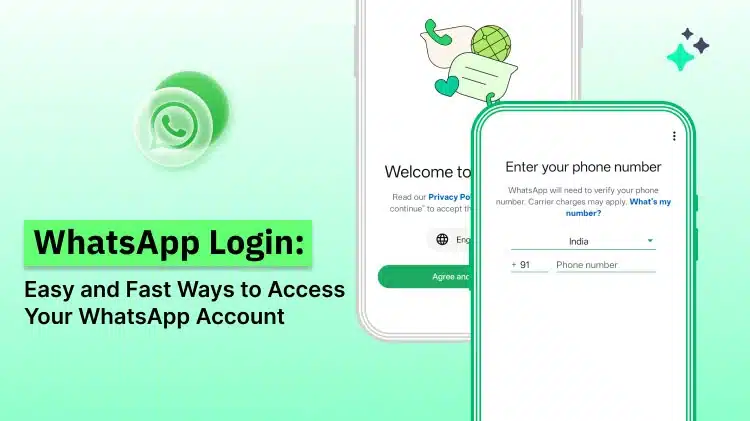
WhatsApp login in the WhatsApp is an easy thing. Some people always get confused on how to log into the WhatsApp account or switch around the same account with multiple devices.
You can easily do the same with out any expertise. WhatsApp login on a new phone device or via WhatsApp Web (on internet browser) has a few simple steps.
In this blog for guiding some easy ways for login in stepwise approach. This includes how to access WhatsApp on mobile, web, and desktop.
What to do for WhatsApp Login?
Before you begin chatting on WhatsApp, you will have to set a few things initially.
We will guide you via the starting steps to get each thing ready for your WhatsApp journey.
Checking Internet Availability
It’s good to check for your internet connection to make sure that WhatsApp installs and sets up without disturbances.
- Get Connected with Wi-Fi or start Mobile Data: Refer with device’s settings and be assured about that you’re rapidly connected to Wi-Fi or your mobile data turned on.
- Check Your Connection: Try to load a webpage or try to run a short video to make sure that your internet is normally working / running.
A sound connection will make the downloading of data faster and skip any interruptions.
Update Your Operating System
Along with the updated version of (your) device’s operating system is essential or must for the best WhatsApp experience.
- Check Updates: Refer to your phone’s settings, get the “Software Update” option, and check or refer if an update is there.
- Download & Install the Update: If there is an update, refer the prompts to download and install it. This would take some minutes, but it supports improve app’s performance and compatibility.
Updating your operating system ensures that WhatsApp runs easily and gives you access for the fresh features.
Downloading and Installing WhatsApp

The initial step in WhatsApp login is getting download the app. It’s easy and takes a few minutes.
- Get your phone and open the App Store if you are on an iPhone or go for the Google Play Store if you are using Android.
- Input or type “WhatsApp” in the search bar and look for the green bubble icon of WhatsApp.
- Press “Install” or “Get,” and your phone takes care of the rest. It will download and install WhatsApp for you.
- When finished, you’re all set to move on and set up your WhatsApp account.
As the WhatsApp download is done, you can go on to the next step: preparing a WhatsApp account.
Process to Create a WhatsApp Account
With downloaded WhatsApp, it’s time to get all set up.
1. Open / go to WhatsApp
Find the WhatsApp icon on your phone and click on it to launch the app.
2. Agree on the Terms of Service
You will get an initial screen with WhatsApp’s ‘Terms of Service’. Read and refer via them and tap on “Agree and Continue” to move further.
3. Verify Your Phone Number
Next step is, it’s time to check your number. Fill up your phone number and tap “Next.”
You will receive a text message with a 6-digit verification code. Input the code in WhatsApp to assure your account. That’s your official WhatsApp number set up!
4. Set App Permissions
Finally, WhatsApp will ask for permissions to work properly, like access to contacts, the camera, photos and notifications.
- Review Permissions: Refer a look at the list shown.
- Grant Permissions: Click “Allow” for the ones you are comfortable with. For the good experience, allow access to contacts and photos.
Your WhatsApp account is ready to get on.
Completing WhatsApp Login Setup
As WhatsApp is installed, we can finish the setup.
This step is all about individualising your profile and adding contacts so you can start chat immediately.
1. Personalizing Your Profile
Creating your unique WhatsApp profile is easy and fun. Refer this way to do it.
- Go to / Open WhatsApp: Click on the WhatsApp icon to open it.
- Go to Settings: Click on the 3 dots in the upper side-right corner (for Android) or the gear icon in the bottom side-right corner (for iPhone) to access the ‘settings’ menu.
- Click on Your Name: At the top of the settings menu, you will see your name. Tap on it to open your profile.
- Add a Profile Picture: Click on the camera logo / icon next to your current profile picture (or the blank space). You can get a fresh photo or choose some from your gallery.
- Configure Your Name: If you did not add your name in-between installation process or wish to change it, click on the text box under “Name” and type for your name.
- Include a Status Message: Below your given name, you can create a status message. This is a short text, your contacts can see under your profile. Click on the ‘About’ field and select something meaningful.
Next, let’s add certain contacts so you can start messaging.
2. Adding Contacts
To have chat on WhatsApp, you must add contacts. Refer now an easy way to do it.
- Go to / Open WhatsApp: Ensure that you are in the main chat screen.
- Access Contacts: Click on the chat icon in the bottom side- right corner (for iPhone) or the green chat bubble in the lower side-right corner (for Android).
- Add a New Contact: Click on “New Contact” or the person icon with a ‘+’ sign.
- Input Contact Information: Fill up in the name and phone number of the person you wish to add. Ensure that the phone number is right and adds the country code.
- Save the Contact: Click on “Save” or the checkmark icon to add the contact in your list.
Now, you can initiate chatting with friends, family or colleagues in a few clicks.
How to Begin Chatting After WhatsApp Login?
Let’s review at how you can start conversations and video calls, make groups, and share media easily.
1. Starting a New Chat
- Open WhatsApp: Click on the WhatsApp icon to open the app.
- Go to Chats: From the main screen, click on the chat icon in the bottom side- right corner (for iPhone) or the green chat bubble in the lower side-right corner (for Android).
- Choose a Contact: You’ll see a list of your contacts. Browse or use the search bar at the top to search the person (i.e. contact) you want to chat with. Click on the name to open a new chat window.
- Type Your Message: At the bottom side of the chat window, you will get a text box. Click on it to start typing your message.
- Send Message: When you are ready to send your message, click on the send button (an airplane icon) nearest to the text box.
2. Creating a Group Chat
You can send messages to many contacts at once by making a group.
How to start a group conversation?
- Open WhatsApp: Start the app by tapping the WhatsApp icon.
- Go to Chats: Click the chat icon (iPhone) or the green chat bubble (Android).
- Create a New Group: Click the “New Chat” button and then choose “New Group.”
- Add Participants: Select the contacts you wish to add to the group. Click “Next” when you are ready.
- Name Your Group: Enter a name for your group and click “Create” to finalize. You’re all set to begin chatting with each one at once!
3. Sending Media (Photos, Videos, Documents)
Sharing photos, videos, or documents is easier! Here is how.
- Open the Chat: Click on the contact or group chat where you wish to send media.
- Click the Attachment Icon: On Android, click the paperclip icon; on iPhone, click the “+” icon.
- Select Media: Select whether you want to send a photo, video, or document.
- Choose Your File: Search your gallery or files to pick the media, you want to send.
- Send Your Media: Once chosen, click the send button (paper airplane icon) to distribute it with your chat.
How to Log into Your WhatsApp Business Account?
Let us see how to get login WhatsApp Business Account.
The login process is not easy.
Refer to see how you can sign in, verify your business number, and begin managing customer chats in one place.
1. Logging In to WhatsApp Business
Refer to the Google Play Store (Android) or the App Store (iOS) and install the WhatsApp Business app.
- Download the app – Refer to the Google Play Store (Android) or the App Store (iOS) and install the WhatsApp Business app.
- Open the app and accept the Terms – Upon launching the app, you will be prompted with the Terms of Service. Click on ‘Agree and Continue’ to proceed.
- Input and verify your phone number – Choose your country and type your business number. Click Next. You will receive an SMS code (or in some regions a call) to verify the number.
- Restore chats (optional) – If a backup presents (on iCloud for iOS or on Google Drive for Android), you will be given the option to restore it. Enabling this makes sure that previous chats are available in your business account.
2. Desktop and Web WhatsApp Login
WhatsApp creates it easy for the connectivity from your computer.
You can refer and participate in your chats to send personal messages right from your browser or via the WhatsApp Desktop app. Here is the way to begin.
3. Accessing WhatsApp Web Login
You can use WhatsApp Web to approach your personal messages directly from your browser. Here’s how.
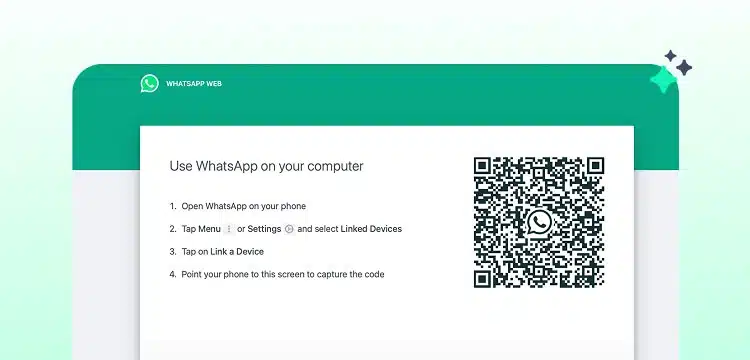
- On your desktop, go to web.whatsapp.com.
- 2. Open WhatsApp on your phone, tap on the three dots (Android) or settings (iPhone), and choose “WhatsApp Web/Desktop.”
- 3. Use your phone’s camera to scan the QR code shown on the web page.
- 4. As the WhatsApp Web QR code is scanned, your WhatsApp chats will sync, and you can begin using WhatsApp from your internet browser!
Logging into WhatsApp Desktop
For a more fascinated experience, you can use the WhatsApp Desktop app.
Refer below steps to log in.
- Download WhatsApp Desktop: Refer the official WhatsApp website and download the Desktop app for Windows or Mac.
- Install the App: Refer the installation steps to get WhatsApp on your desktop.
- Open the App: Launch the app upon the installation.
- Scan the QR Code: Like WhatsApp Web, open WhatsApp on your phone, tap the 3 dots (Android) or settings (iPhone), and select “WhatsApp Web/Desktop.”
- Start Using WhatsApp: Your chats will sync, and you can start sending personal messages from your desktop!
Managing Active Sessions
To retain your account safe, it’s important to manage your active sessions. This is how you can track and manage them.
- View Active Sessions: Open WhatsApp on your phone, go to “Settings” (iPhone) or the 3 dots (Android), then click “WhatsApp Web/Desktop.”
- See Active Devices: You will see a list of all the devices currently logged into your account.
- Log Out of Devices: To log out of any device, simply click on the session you want to end and choose “Log out.”
- Safeguard Your Account: If you notice any unauthorized devices, be sure to log them out to keep your account safe.
Security Tips after WhatsApp Login
Keeping your WhatsApp account secure is tough to protect your personal information and chats.
Let’s refer 2 simple still efficient things that you can create.
Tip 1: Allowing Two-Step Verification
Two-step verification adds an extra security to your WhatsApp account.
Check here to activate it.
- Open WhatsApp: Tap the WhatsApp icon to open the app.
- Go to Settings: Tap the 3 dots in the upper-right corner (for Android) or the gear shaped icon in the bottom-right corner (for iPhone) to access the settings menu.
- Click on Account: In the settings menu, select “Account.”
- Select 2-Step Verification: Click on “2-step verification,” then “Enable.”
- Set a PIN: You’ll be guided to make a six-digit PIN. Input a PIN that you can easily remember but must be tough for others to guess.
- Offer an Email Address: Input an email address that you can apply to reset your PIN if you forget it. This step is highly recommended even though optional.
- Confirm Your Email: Re-input your email address to confirm it.
With 2-step verification allowed, you will need to input your PIN periodically and when you register your phone number with WhatsApp again.
Tip 2: Control Your Privacy
Adjusting your privacy settings supports you control who can check out your information on WhatsApp.
Refer here: how to review and change these settings.
- Open WhatsApp: Tap the WhatsApp icon to open the app.
- Go to Settings: Tap the 3 dots in the upper-right corner (for Android) or the gear icon in the bottom-right corner (for iPhone) to access the settings menu.
- Choose Privacy: Click on “Privacy” to refer all the privacy options.
Find some key privacy settings you can adjust given below.
- Last Seen: Select who can see when you were last online. Options are “Everyone,” “My Contacts,” or “Nobody.”
- Profile Photo: Control who can see your profile picture. Options are “Everyone,” “My Contacts,” or “Nobody.”
- About: Finalise who can see your status message. Options are “Everyone,” “My Contacts,” or “Nobody.”
- Status: Choose who can check your status updates. You can select “My Contacts,” “My Contacts Except…,” or “Only Share With…”
- Read Receipts: Toggle read receipts on / off. When off, you won’t send or receive read receipts, but group chats will still have them.
You can control who refers your personal details by adjusting such settings.
End Summary
From making your WhatsApp account to personalize your profile, adding contacts, and sending your first message, the WhatsApp login process is fast and user friendly.
As you have logged in, you can start chatting, can make groups, and share images, videos, or documents easily.
So, you may log in and take things in your own way. You connect with friends, family, or coworkers in a few clicks. WhatsApp makes online availability easy always with logged in and you are free to create the most of it.
If you’re planning to use WhatsApp business account for your business or organisation, WebMaxy can always help you out. With great features like WhatsApp chatbots, CTWA, and WhatsApp broadcast, WebMaxy will support you simplify communication and outgrow your business.
To try this, Sign up for a free trial with WebMaxy. For more details, you can ping our WebMaxy team on: info@webmaxy.co
Frequently Asked Questions

Adam Wilson
Adam Wilson comes with an experience of 12+ years in the IT industry. As a Customer Success Manager, he has been researching and trying to understand the customers’ behavior in different scenarios. He has also studied human psychology to relate it to the purchase journey of the customers. His published books on customer psychology and behavior have received many honors and awards from various enterprises.